Inspection Requests
Welcome to the Inspection Requests page, where you can find detailed instructions on how to request, cancel, and check the results of inspections related to building safety, engineering, and other regulatory compliance.
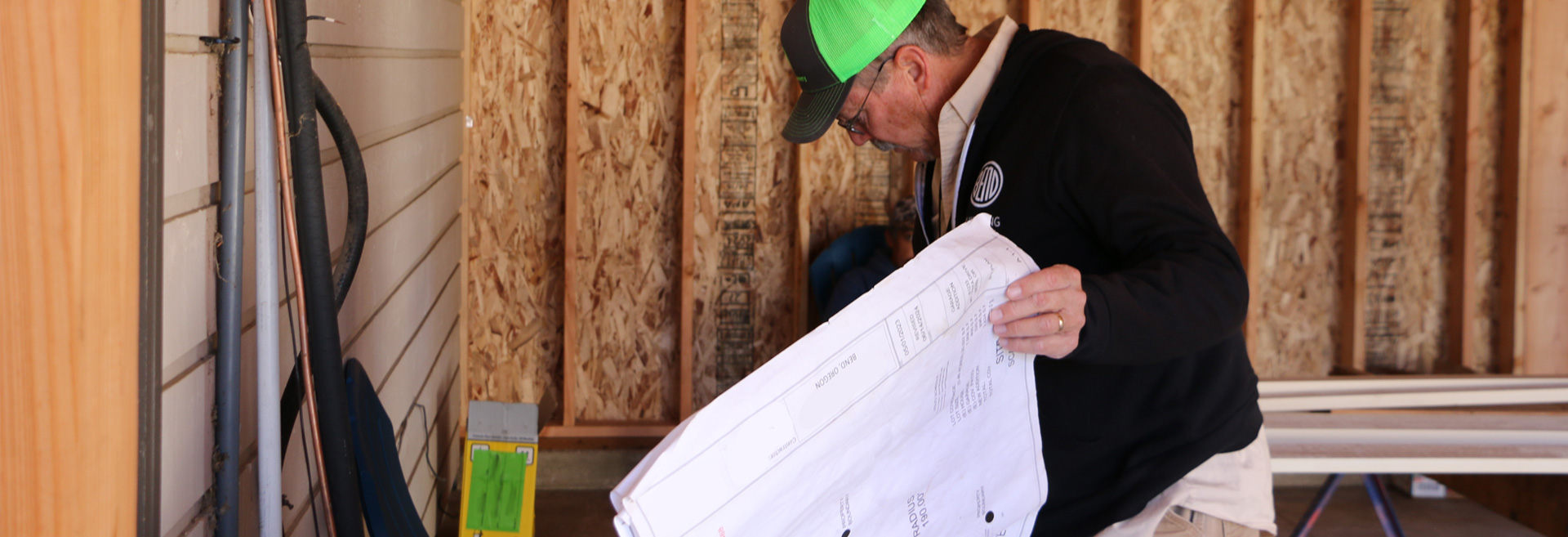
Request an Inspection
All inspection requests are handled through the Online Permit Center Portal. Please refer to the following steps for specific details:
NOTES:
- You must be the applicant or a listed contact on the project to request inspections.
- Our inspection team works hard to complete every inspection on the day it was requested for. However, because we receive so many requests, we might not always be able to fit everyone in. If we can’t get to your inspection on the requested day, we typically make sure to reschedule it for the next business day.
1Option: For a Few Projects
- Log in to your Online Permit Center Portal account.
- Go to the My Items list and expand the right service area.
- Find the application’s Reference Number and click ‘Request Inspection’.
- Check the box for the inspection you want to schedule.
- To schedule more than one, check the boxes next to each inspection.
- Click Next Step.
- Pick the date for the inspection.
- Add any notes for the inspector, enter a contact email, and complete the CAPTCHA. The contact email may get a notification when the inspector is on the way.
- Click Next Step to confirm.
- If you get an error message when trying to advance to the next step, please contact a permit technician: building@bendoregon.gov or 541-388-5580 Ext 2.
Note: We can’t guarantee inspections on the requested date, but we’ll try our best.
2Option: For Many Projects or Inspections
- Log in to your Online Permit Center Portal account.
- Click on ‘Request Inspection’ under the right service area.
- Search by reference number or address:
- Enter your project number and select from the list.
- Enter the address and select from the list.
- If there are multiple applications, scroll to find yours.
- Click ‘Request Inspection’ once you find the project.
- View ‘Upcoming Inspections’ from My Items.
Note: We can’t guarantee inspections on the requested date, but we’ll try our best.
For more help, visit our Online Permit Center Portal Help page to watch our video on this topic.
Cancel an Inspection
All inspection cancellations are handled through the Online Permit Center Portal. Please refer to the following steps for specific details:
Note: You must be the applicant or a listed contact on the project to cancel inspections.
- Log in to your Online Permit Center Portal account.
- Go to the My Items list and expand the right service area.
- Select the application’s Reference Number.
- Scroll down to the Inspections section.
- Click ‘Cancel’ next to the inspection.
View Inspection Results
The project applicant and listed contacts will get an email with inspection results once they’re ready. If there are any notes from the inspector, they’ll be included in the email.
If you would like to review the results online, follow these instructions:
- Log in to your Online Permit Center Portal account.
- Go to the My Items list and expand the right service area.
- Select the corresponding Reference Number.
- Scroll down to the Inspections section.
- The status will be shown in the Outcome column next to the inspection type.
Frequently Asked Questions
Both project applicants and contacts can request inspections. If you’re not listed as either, ask the project applicant to add you.
Final inspections can’t be scheduled until all other required inspections have been passed.
For Property Owners: Please include the best person to contact and their phone number in your inspection request notes. Our inspectors do their best to read these notes and reach out if they can’t access the location needed. Depending on their workload, they will try to contact the person listed.
For Contractors and Developers: Due to the high volume of requests, our inspectors will most likely not be able to call you. Please ensure they have access to the inspection site on the day of the request.
Due to the high volume of requests, inspectors sometimes can’t get to every inspection on the requested day. If this happens, your inspection will usually be moved to the next business day.
For Property Owners: When you request an inspection, please include the best contact person and their phone number, along with a note asking for a courtesy call-ahead. Our inspectors will do their best to read these notes and reach out before arriving. Depending on their workload, they will try to contact the person listed.
For Contractors and Developers: Due to the high volume of requests, our inspectors will not be able to call you. Please ensure that someone is on-site on the day of the inspection if you want to be present when it occurs.
Your application needs to be approved, and a permit issued before you can request an inspection. Once your permit is issued, you will receive an email notification. After that, you’ll be able to request your inspection.
If you receive this message, please reach out to a permit technician: building@bendoregon.gov or 541-388-5580 Ext 2.
We prefer that you use the Online Permit Center Portal to request all inspections. This allows you to request inspections 24/7 from any device, anywhere. If you have tried to request your inspection through the portal and are having trouble, our team is available to help via email: building@bendoregon.gov, phone: 541-388-5580 Ext. 2, or in person at the Permit Center: 710 N.W. Wall St., Bend, OR 97703, Monday – Friday, 9 a.m. – 4 p.m., except most major holidays.

Customer Resources:
Monday through Friday
8 a.m. – 5 p.m.
Permit Inquiries:
Monday through Friday
9 a.m. – 4 p.m.
Closed most major holidays.

Location:
710 NW Wall Street
Bend, OR 97703